
Most advice about organizing computer files begins and ends with folders.
Create a Documents folder. Add subfolders for work, photos, downloads, and backups. Name everything consistently. Try not to lose anything.
That works until the computer becomes more than a place to store documents.
My workstation, Atoll, is a creative workshop. It contains software projects, Linux themes, AI models, Docker services, articles, screenshots, reference images, website graphics, unfinished experiments, and years of files copied from older machines.
A folder structure alone cannot manage all of that.
The real solution is a combination of:
- a clear physical file structure;
- Obsidian for project knowledge and navigation;
- digiKam for visual asset discovery;
- version control for software projects;
- dedicated archive and backup areas;
- and a workflow that separates active work from finished or abandoned material.
Together, these tools create something closer to a digital workshop than a traditional filing cabinet.
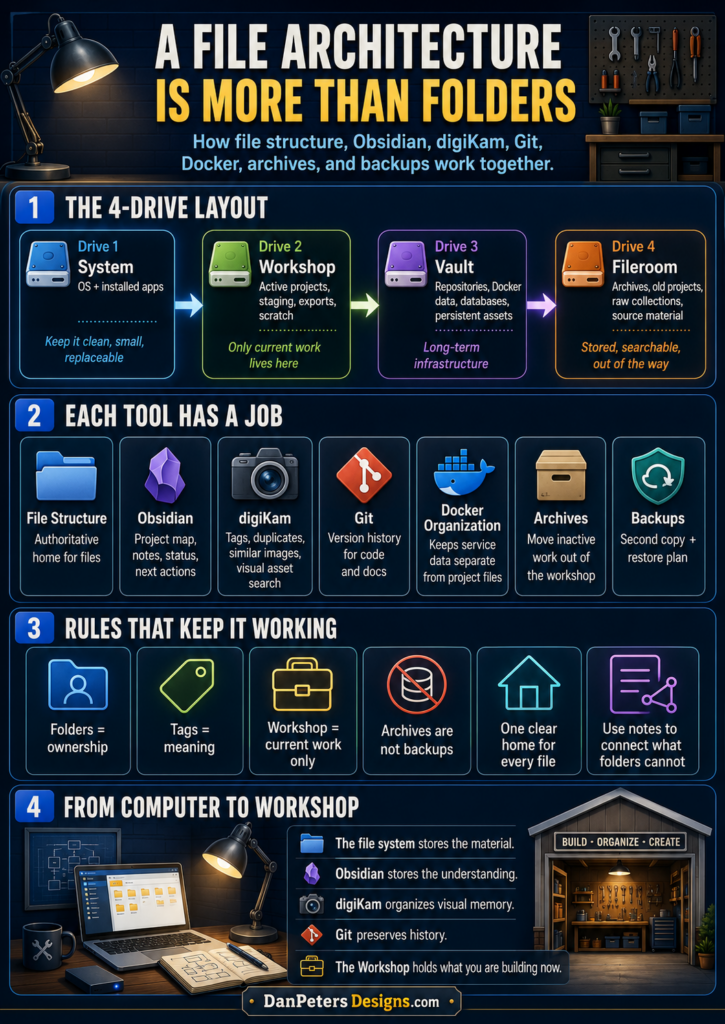
The Foundation: Give Every Drive a Job
Atoll uses multiple drives, and each drive has a distinct purpose.
The system drive contains Linux and installed applications. It should remain relatively small, clean, and replaceable.
The Workshop drive is the active workbench. It holds current projects, temporary processing space, staging areas, and files that are actively being edited.
The Vault stores important long-term data, project repositories, Docker data, databases, AI services, and material that should survive a system reinstall.
The Fileroom is for older projects, large collections, archives, source material, and files that do not need to remain on the active workbench.
This separation matters.
When every drive is treated as general storage, files slowly spread everywhere. Downloads become permanent storage. Old projects remain mixed with current ones. Temporary exports become indistinguishable from final files. Nobody remembers which copy is authoritative.
Giving each drive a job reduces those decisions.
The question becomes less like:
Where should I put this file?
And more like:
Is this active work, permanent infrastructure, or archived material?
That is a much easier question to answer.
The Workshop Should Contain Work
One of the most useful changes has been treating the Workshop drive as a real workshop.
Only current projects belong on the benches.
A project that is actively being developed, edited, packaged, tested, or published can stay in the Workshop. When that project is completed, paused indefinitely, or replaced, it should move out.
This prevents the active workspace from filling with yesterday’s projects.
A physical workshop would be unusable if every completed object, broken prototype, leftover material, and abandoned experiment stayed on the workbench forever. Digital workspaces fail for the same reason, although the clutter is easier to ignore.
The Workshop should answer one question clearly:
What am I working on now?
A simple active-project structure might look like this:
Workshop/
├── Projects/
│   ├── Linux Tech Helper/
│   ├── DPD Steamworks Theme/
│   ├── Diaroma Beach/
│   └── Image Sorting Agent/
├── Staging/
├── Exports/
├── Scratch/
└── Incoming/
Projects contains active projects.
Staging contains files being prepared, converted, renamed, or reviewed.
Exports holds generated packages, images, builds, and release candidates before they are published or moved.
Scratch is explicitly temporary.
Incoming is a controlled landing area for files that have not yet been sorted.
The important part is not the exact folder names. The important part is that each area has a defined meaning.
Obsidian Is the Workshop Map
Folders hold the actual files, but folders are poor at explaining relationships.
A project may involve:
- source code;
- screenshots;
- design references;
- packaging instructions;
- publishing notes;
- unresolved problems;
- website links;
- release history;
- and ideas for future versions.
Those items may live in several locations for good reasons. Trying to force all of them into a single folder can create duplication or make the folder structure unnecessarily complicated.
This is where Obsidian becomes valuable.
Obsidian is not the storage system. It is the map of the storage system.
Each active project can have a project note that records:
- what the project is;
- its current status;
- the authoritative project location;
- important asset locations;
- current tasks;
- recent decisions;
- known problems;
- related projects;
- and what should happen next.
For example:
# Diaroma Beach

## Status

Active novelty icon-set project.

## Main Project Folder

`/mnt/Workshop/Projects/Diaroma Beach`

## Raw Assets

`/media/dan/Fileroom/Diaroma Beach Raw & Reference`

## Current Goal

Separate approved icon sheets into clean individual PNG files.

## Next Action

Review the next source sheet and verify that no icons are clipped.

## Notes

This is a novelty giveaway set, not a comprehensive Linux theme.
Prioritize charm, presentation, and easy packaging.
That note becomes the front door to the project.
The project’s files may be spread across the Workshop, Vault, and Fileroom, but the project itself is no longer mentally scattered.
Obsidian can also maintain a dashboard showing only current work:
# DPD Content Studio

## Work Next

- [ ] Choose one piece of content to finish
- [ ] Gather its source assets
- [ ] Create or update its content note
- [ ] Produce the final version
- [ ] Move completed material out of the Workshop
The dashboard should not attempt to list every file or every idea. Its job is to show what deserves attention now.
digiKam Is the Visual Filing System
Traditional folder organization becomes especially weak when dealing with images.
An image may belong to several categories at once:
- a screenshot of Linux Tech Helper;
- a possible website graphic;
- an unfinished ad;
- a Docker Console reference;
- an image containing Addi;
- a final export;
- and a duplicate of an older file with a different name.
Folders can represent only one primary location. digiKam adds another layer.
It can identify exact duplicates, find visually similar images, compare folders, assign ratings, apply tags, and group related assets without physically duplicating them.
This is especially important for a large creative archive.
Instead of manually opening thousands of poorly named images, digiKam can help answer questions such as:
- Which images are exact duplicates?
- Which screenshots show the same interface?
- Where are all the Diaroma Beach references?
- Which graphics are likely finished?
- Which files are damaged or cropped?
- Which images belong to the same project but are stored in different folders?
Tags can describe what an image is without changing where it lives.
For example:
Project/Diaroma Beach
Asset Type/Raw Reference
Asset Type/Final Graphic
Status/Needs Review
Status/Approved
Subject/Addi
Product/Linux Tech Helper
Problem/Cropped Bottom
A single image can have several of these tags.
That is much more flexible than creating copies of the image in five different folders.
Use Folders for Ownership and Tags for Meaning
A useful rule is:
Folders describe where a file belongs. Tags describe what the file means.
The physical folder should identify the authoritative home of the file.
The metadata system can describe its subjects, uses, status, quality, and relationships.
This avoids a common failure in file organization: trying to encode every possible meaning into a deeply nested folder path.
A path such as this quickly becomes unmanageable:
Images/
└── Linux/
    └── Products/
        └── Ads/
            └── Finished/
                └── Website/
                    └── Docker/
                        └── 2026/
What happens when the same graphic is also used on Facebook? Does it move? Does it get copied? Which version is now the master?
A better structure might be:
Projects/
└── DPD Docker Console/
    └── Assets/
        └── Final/
Then digiKam tags can identify it as:
Product/Docker Console
Asset Type/Display Ad
Platform/Website
Platform/Facebook
Status/Final
Year/2026
The file has one home but many meanings.
Git Handles Software History
Creative files and software projects need different kinds of organization.
For code, scripts, documentation, and configuration files, Git provides a reliable history of change.
Git answers questions that folders cannot:
- What changed?
- When did it change?
- Why was it changed?
- Which version worked?
- Can the previous version be restored?
- Which files belong in the project?
- Which generated files should be ignored?
A Git repository should remain inside the project’s authoritative directory. Random copies of the code should not be used as informal backups.
For example:
Vault/
└── Repositories/
    └── linux-tech-helper/
        ├── .git/
        ├── lth/
        ├── tools/
        ├── docs/
        └── README.md
The working repository may live on the Vault because it is important and persistent, while temporary builds or release staging can happen on the Workshop.
Obsidian can link to that repository and record the current milestone, release tag, known issues, and next development task.
Docker Data Is Infrastructure, Not a Project Folder
Docker introduces another category of files.
Container images, databases, model caches, volumes, and service state are not ordinary project documents. They are live infrastructure.
They should not be mixed casually with design assets or copied by dragging folders around while services are running.
Atoll keeps Docker’s engine data on the Vault. That gives the services a persistent home separate from the operating system.
The architecture should distinguish between:
- Docker application definitions;
- Docker runtime data;
- persistent databases;
- backups;
- exported configuration;
- and the projects that use those services.
For example:
Vault/
├── docker-engine-data/
├── Services/
│   ├── open-webui/
│   ├── ollama/
│   ├── postgres/
│   └── n8n/
├── Databases/
└── Backups/
The exact layout depends on the deployment, but the principle remains the same: infrastructure needs a defined home and a documented recovery path.
The Obsidian note for each service can record ports, storage paths, dependencies, backup instructions, and the command used to start or inspect it.
That turns a mysterious collection of containers into maintainable workshop equipment.
Archives Should Be Searchable, Not Visible Everywhere
Archiving does not mean throwing files into an unmarked directory and hoping they are never needed again.
An archive should remove inactive material from the active workspace while preserving enough information to find and understand it later.
A completed project might move from:
Workshop/Projects/Old Project
to:
Fileroom/Projects/Completed/Old Project
Its Obsidian project note can remain in the knowledge base, but its status should change to archived.
The note can record:
- completion date;
- final release location;
- archive location;
- associated website page;
- reason the project ended;
- and any future revival notes.
This gives the project a clean ending without erasing its history.
The Workshop stays current. The Fileroom preserves the past. Obsidian remembers where everything went.
Backups Are a Separate Layer
An archive is not a backup.
Moving a completed project from one folder to another protects the active workspace from clutter. It does not protect the project from drive failure.
Important material should exist in more than one physical location.
The most valuable items usually include:
- active source repositories;
- project documents;
- original artwork;
- final release packages;
- website content;
- databases;
- configuration files;
- service definitions;
- and the Obsidian vault itself.
Large replaceable files, caches, downloaded installers, temporary exports, and regenerable AI model layers may receive a lower backup priority.
A useful backup plan should identify:
- what must be backed up;
- where the second copy lives;
- how often it is updated;
- how to restore it;
- and how to verify that the backup is usable.
Without a restore plan, a backup is only a hopeful copy.
Naming Still Matters, but It Is Not the Whole System
Clear filenames remain useful.
Good names help when files leave the original application, appear in search results, are uploaded to a website, or are shared with someone else.
A practical filename might include:
project-purpose-version-date.ext
For example:
linux-tech-helper-display-ad-v2-2026-07.png
However, filenames should not be forced to contain every possible detail.
The project folder provides context. digiKam tags provide visual metadata. Git provides revision history. Obsidian provides human-readable meaning.
Each layer does the job it is best suited for.
The Full System
The complete architecture works as a set of cooperating layers.
File structure
Defines the authoritative physical location of files.
Dedicated drives
Separate the operating system, active workspace, persistent infrastructure, and archives.
Obsidian
Explains projects, decisions, relationships, locations, status, and next actions.
digiKam
Finds, compares, rates, groups, and tags visual assets.
Git
Tracks software history and supports safe development.
Docker organization
Keeps live service data separate from ordinary project files.
Archives
Remove inactive material from the active workbench without losing it.
Backups
Protect important data from hardware failure, accidental deletion, and corruption.
None of these layers replaces the others.
Together, they make the computer understandable.
From Computer to Workshop
The goal is not to create a perfect folder tree.
Perfect folder trees usually collapse because real projects do not fit neatly into a single hierarchy. They overlap. They evolve. They produce reference material, drafts, exports, code, notes, and final packages.
The better goal is to create a system where every type of information has an appropriate tool.
The file system stores the material.
Obsidian stores the understanding.
digiKam organizes visual memory.
Git preserves development history.
The Workshop holds what is being built.
The Vault keeps the machinery running.
The Fileroom preserves what came before.
Once those roles are clear, the computer stops feeling like a pile of drives and folders.
It becomes a digital workshop: benches for active work, cabinets for tools, shelves for materials, maps for finding things, and a storeroom that keeps yesterday’s work from burying today’s.