

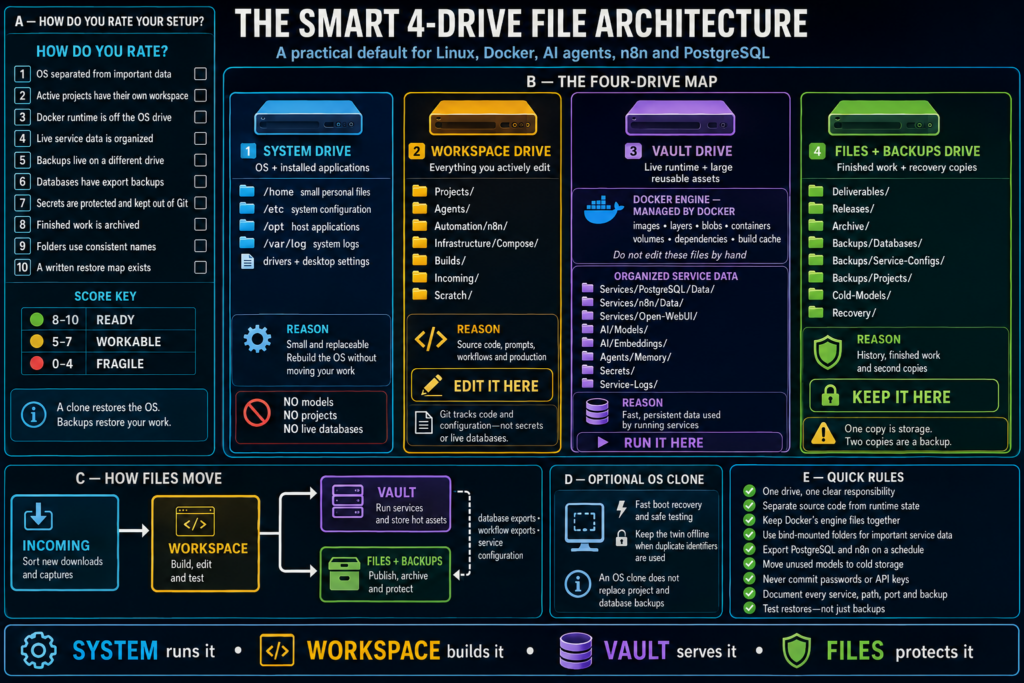
The Smart Four-Drive File Architecture for Linux, AI, Docker, and Automation
Modern computers accumulate much more than documents and photographs. A Linux workstation may also contain source code, websites, Docker containers, local AI models, agent memory, PostgreSQL databases, n8n workflows, video projects, application settings, release packages, and years of archived work.
If all of it is stored wherever an application happens to put it, the computer eventually becomes difficult to understand and dangerous to repair. Reinstalling the operating system can threaten project files. A Docker problem can be mistaken for lost application data. Backups become a collection of mystery folders that may or may not contain what you need.
The solution is not simply buying a larger drive. The solution is giving each kind of data a clear home.
A four-drive architecture separates the computer into four understandable roles:
- System runs the computer.
- Workspace holds the work you actively create and edit.
- Vault holds the large and persistent data used by running services.
- Files and Backups preserves finished work, history, and recovery copies.
An optional cloned system drive can provide fast boot recovery, but it serves a different purpose from a real backup.
This article explains the complete structure, why it works, what belongs on each drive, and how files should move through the system.
The short version: System runs it. Workspace builds it. Vault serves it. Files protects it.
The Architecture Is About Roles, Not Drive Sizes
There is no universal correct capacity for any of these drives. A programmer, video editor, photographer, local-AI user, and home-office user will all need different amounts of space.
What matters is the separation of responsibilities.
| Storage role | Primary purpose | Easy question to ask |
|---|---|---|
| System | Operating system and installed applications | Does the computer need this to boot or run? |
| Workspace | Active projects and editable source material | Am I currently building or changing this? |
| Vault | Docker runtime, databases, models, and live application state | Does a running service need this data? |
| Files and Backups | Deliverables, archives, and recovery copies | Am I preserving, publishing, or protecting this? |
You can use these roles with solid-state drives, hard drives, network storage, or a combination of them. The architecture can also be adapted to fewer physical drives, but four separate drives make the boundaries especially easy to understand and recover.
Drive 1: The System Drive
The System drive contains Linux, installed applications, hardware drivers, desktop settings, and the small configuration files required to operate the computer.
Its most important quality is not size. It is replaceability.
If the System drive fails or the operating system needs to be reinstalled, the rest of your work should still exist on the other drives. Rebuilding Linux should be an inconvenience, not a catastrophe.
Recommended System-drive map
/
├── home/
│   └── user/
│       ├── Desktop/
│       ├── Documents/          # Small personal documents only
│       └── .config/            # User and desktop settings
├── etc/                        # System-wide configuration
├── opt/                        # Optional host applications
├── usr/                        # Installed operating-system software
├── var/
│   ├── cache/                  # Rebuildable application caches
│   └── log/                    # System logs
└── boot/                       # Bootloader and kernel files
The exact Linux directory layout is managed by the operating system. The point is not to reorganize /usr, /etc, or /var manually. The point is to avoid adding large, irreplaceable collections to the System drive.
What belongs on the System drive
- Linux and the desktop environment
- Drivers and hardware support
- Installed host applications
- Desktop launchers and normal user settings
- Small logs, caches, and temporary files
- Configuration needed to locate the other drives
What should usually live elsewhere
- Active development projects
- Large media libraries
- Local AI models
- Docker’s engine data
- Live PostgreSQL databases
- Agent memory and vector indexes
- Large downloads and build output
- The only copy of anything important
Keeping these items elsewhere prevents the System drive from becoming both a boot device and a warehouse.
Drive 2: The Workspace Drive
The Workspace drive is your active studio. It contains the things you deliberately open, edit, build, test, and improve.
This includes far more than source code. It may contain website projects, design assets, automation definitions, AI-agent instructions, prompts, documentation, release candidates, video projects, and experiments.
The key distinction is that Workspace contains human-managed source material. These files should be understandable when browsed in a file manager, and important projects should normally be versioned with Git or another version-control system.
Recommended Workspace-drive map
Workspace/
├── Projects/
│   ├── Applications/
│   ├── Websites/
│   ├── Themes/
│   ├── Media-Projects/
│   └── Experiments/
├── Factory/
│   ├── Staff/
│   ├── Tools/
│   ├── Templates/
│   └── Job-Workspaces/
├── Agents/
│   ├── Definitions/
│   ├── Prompts/
│   ├── Tools/
│   ├── Evaluations/
│   └── Workspaces/
├── Infrastructure/
│   ├── Compose/
│   ├── Manifests/
│   ├── Install-Scripts/
│   └── Restore-Guides/
├── Automation/
│   └── n8n/
│       ├── Workflow-Exports/
│       ├── Custom-Nodes/
│       └── Documentation/
├── Builds/
│   ├── Staging/
│   ├── Packages/
│   └── Release-Candidates/
├── Incoming/
└── Scratch/
This structure is a starting point, not a demand that every user create every folder. Create the top-level categories you actually need, and keep their meanings consistent.
Projects
Projects/ contains the products and creative work you are actively developing. Each project should have its own directory containing its source files, documentation, tests, and project-specific assets.
A project should not be scattered across Downloads, Desktop, Documents, and several application folders. One project should have one primary home.
Agents
The Agents/ folder contains the parts of an AI agent that you intentionally design and maintain:
- Agent definitions
- System prompts and instruction files
- Tools and integrations
- Evaluation material
- Test workspaces
- Documentation
The agent’s live memory, database, and indexes belong on the Vault drive. The distinction is simple: agent design belongs in Workspace; agent runtime state belongs in Vault.
Infrastructure and Compose files
Docker Compose files, deployment manifests, installation scripts, and written restore instructions are source material. They should be readable, versioned, and stored on Workspace.
Passwords, tokens, API keys, encryption keys, and live databases should not be committed to Git. They belong in protected storage on Vault, with encrypted recovery copies stored separately.
Incoming and Scratch
Incoming/ is a landing zone for new downloads, captures, imports, and files received from other people. Nothing should live there forever. Sort it regularly into a project, library, archive, or trash.
Scratch/ is intentionally temporary. It is safe to experiment there because anything important will be promoted into a proper project folder.
Drive 3: The Vault Drive
The Vault is the computer’s machine room. It stores the persistent data used by Docker, databases, local AI, automation systems, and agents while those services are running.
The Vault is not primarily a place for documents you browse by hand. It is where applications keep the large or stateful data they need to continue operating after a restart.
There are two very different categories inside the Vault:
- Docker’s managed engine data
- Organized persistent service data
Keeping these concepts separate makes Docker easier to repair, migrate, and back up.
Recommended Vault-drive map
Vault/
├── Docker/
│   └── Engine/                 # Docker data-root; managed by Docker
├── Services/
│   ├── PostgreSQL/
│   │   └── Data/
│   ├── n8n/
│   │   └── Data/
│   ├── Open-WebUI/
│   │   └── Data/
│   ├── Search/
│   ├── Voice/
│   └── Monitoring/
├── AI/
│   ├── Models/
│   ├── Embeddings/
│   ├── Model-Cache/
│   └── Shared-Assets/
├── Agents/
│   ├── Memory/
│   ├── Knowledge/
│   ├── Indexes/
│   ├── Sessions/
│   └── Runtime/
├── Databases/
│   ├── Vector-Stores/
│   └── Application-State/
├── Secrets/
└── Service-Logs/
Docker’s managed engine layer
Docker maintains an internal data root containing the pieces required to construct and run containers. Depending on the Docker version and storage driver, this includes:
- Downloaded image content
- Read-only image layers
- Content-addressed blobs
- Container metadata
- Writable container layers
- BuildKit and image-build cache
- Docker-managed volumes
- Network and plugin metadata
- Runtime dependencies packaged inside images
This is the Docker layer people sometimes overlook when moving containers away from the System drive. Moving only a Compose file does not move the downloaded images, build cache, layers, blobs, volumes, or container state.
The Docker engine should be explicitly configured to use the Vault location as its data root. Once configured, Docker manages the contents.
Do not manually rename, rearrange, delete, or copy individual files inside Docker’s engine directory while Docker is running. Treat it as an application-managed structure, not a personal filing cabinet.
Some parts of the engine are disposable. Images and build cache can often be downloaded or rebuilt. Other parts, especially volumes containing application data, may be irreplaceable. That is why important application data should be given clear, documented storage locations instead of being left as anonymous state.
Organized service data
Important services should use clearly named persistent directories under Vault/Services/ whenever the application supports bind-mounted storage.
For example, one service can have three separate locations:
Workspace/Infrastructure/Compose/example-service/
└── compose.yml                 # Human-managed deployment definition

Vault/Services/example-service/
└── Data/                       # Live persistent application data

Files/Backups/Services/example-service/
└── YYYY-MM-DD/                 # Recovery copy or application export
This gives each type of information the correct home:
- Workspace explains how the service is deployed.
- Vault contains what the service needs while running.
- Files and Backups contains what you need to recover it.
PostgreSQL
PostgreSQL’s live database directory belongs on Vault because the database needs reliable, persistent storage while running.
However, the live PostgreSQL data directory is not a convenient everyday backup. Copying it while the database is running can produce an inconsistent recovery copy.
Use database-aware tools such as pg_dump, pg_dumpall, or a properly configured physical-backup system. Store the resulting backup files on the Files and Backups drive, not beside the live database.
The minimum separation should look like this:
Vault/Services/PostgreSQL/Data/          # Live database
Files/Backups/Databases/PostgreSQL/      # Exported backups
Workspace/Infrastructure/Compose/        # Deployment definition
n8n
n8n contains several kinds of information:
- Workflow definitions
- Credentials and encrypted credential records
- Execution history
- Instance configuration
- Community or custom nodes
- Its application database
The live n8n state belongs on Vault. Human-readable workflow exports and custom-node source code belong on Workspace. Scheduled recovery exports belong on Files and Backups.
Protect the encryption key used for credentials. A database backup without the matching key may not be enough to recover usable credentials.
Workspace/Automation/n8n/Workflow-Exports/   # Editable/exported workflows
Workspace/Automation/n8n/Custom-Nodes/       # Maintained source code
Vault/Services/n8n/Data/                      # Live n8n state
Vault/Secrets/n8n/                            # Protected secrets and key material
Files/Backups/Automation/n8n/                 # Dated recovery exports
Local AI models and agents
AI models are large but usually replaceable. Frequently used models belong on Vault so local AI services can load them directly. Models that are worth keeping but rarely used can be moved to Cold-Models/ on the Files drive.
Agent storage follows the same source-versus-state rule:
| Agent component | Correct location |
|---|---|
| Prompts, definitions, tools, tests | Workspace |
| Live memory, indexes, sessions, knowledge databases | Vault |
| Reports, published output, snapshots, recovery exports | Files and Backups |
This prevents a live agent’s changing memory database from becoming tangled with its carefully versioned instructions.
Secrets
Vault/Secrets/ should contain credentials required by local services, protected with restrictive file permissions. Secrets must not be committed to Git, embedded in screenshots, or stored in public project documentation.
Important secrets need an encrypted recovery copy. A secret stored only on Vault can disappear with a failed drive; a secret copied as plain text into an unprotected archive creates a different security problem.
Drive 4: The Files and Backups Drive
The Files and Backups drive is the filing cabinet, release shelf, and safety net.
It stores finished deliverables, published releases, completed-project archives, recovery documentation, cold storage, and second copies of important data from the other drives.
The critical phrase is second copies.
Moving a file from Workspace to the Files drive is organization. Keeping the file in both locations—or storing a verified backup of it elsewhere—is protection.
One copy is storage. Two copies are a backup. A tested second copy is a recovery plan.
Recommended Files-and-Backups map
Files/
├── Deliverables/
│   ├── Software/
│   ├── Websites/
│   ├── Documents/
│   ├── Images/
│   └── Video/
├── Releases/
│   ├── Applications/
│   ├── Themes/
│   └── Packages/
├── Archive/
│   ├── Completed-Projects/
│   ├── Retired-Projects/
│   ├── Source-Materials/
│   └── Old-Installers/
├── Backups/
│   ├── Databases/
│   │   └── PostgreSQL/
│   ├── Automation/
│   │   └── n8n/
│   ├── Services/
│   ├── Agent-Memory/
│   ├── Service-Configurations/
│   ├── Project-Snapshots/
│   └── System-Manifests/
├── Recovery/
│   ├── Storage-Map.md
│   ├── Service-Inventory.md
│   ├── Restore-Order.md
│   └── Checksums/
└── Cold-Models/
Deliverables and releases
Deliverables are the files intended for use outside the original project: exported images, finished videos, client documents, website packages, and other final output.
Releases are versioned packages that can be redistributed or installed. They should be kept separately from the changing source project so that an older published version can be found exactly as it was delivered.
Use clear names that include the project, version, and date when useful. Avoid names such as final, final-new, and final-really-final.
Archives
Archiving removes inactive work from the daily Workspace without pretending it never existed.
A completed project archive should include enough context to understand it later:
- Source files
- Final deliverables
- A short README
- Dependency or environment notes
- License information
- Version or release history
- Any special restore instructions
An archive is most useful when a future version of you—or another person—can understand it without reconstructing the entire story from memory.
Backup categories
Organize backups by what they restore, not only by the name of the backup program.
Good categories include:
- Databases: PostgreSQL dumps and other database-aware exports
- Automation: n8n workflow exports, configuration, and protected key recovery
- Services: persistent application data and service-specific exports
- Agent memory: agent databases, indexes, and knowledge snapshots
- Projects: snapshots of important active projects in addition to Git remotes
- System manifests: package lists, mount definitions, service inventory, and configuration notes
Date folders using the sortable YYYY-MM-DD format:
Files/Backups/Databases/PostgreSQL/
├── 2026-07-01/
├── 2026-07-08/
└── 2026-07-15/
This avoids ambiguity between day-month and month-day formats and keeps folders in chronological order.
Recovery documentation
Backups are much less useful when nobody knows where they came from or how to restore them.
The Recovery/ folder should answer four questions:
- Which services exist?
- Where does each service store its live data?
- Where are its backups?
- In what order should the system be restored?
A basic service inventory might record:
| Service | Compose location | Live data | Backup location | Required secret |
|---|---|---|---|---|
| PostgreSQL | Workspace Infrastructure | Vault Services | Files Backups Databases | Database credentials |
| n8n | Workspace Infrastructure | Vault Services | Files Backups Automation | Encryption key |
| Local AI service | Workspace Infrastructure | Vault AI | Models are replaceable or cold-stored | Service configuration |
The exact paths will differ, but the relationships should always be documented.
Optional: A Cloned System Drive
A cloned System drive can provide fast boot recovery and a safe place to test major system changes. If the primary System drive fails, the clone may allow the computer to boot without waiting for a complete reinstall.
But an OS clone is not a substitute for backups.
It normally protects:
- Linux
- Installed applications
- Drivers
- Desktop configuration
- Boot files
It does not automatically protect the latest:
- Workspace projects
- PostgreSQL databases
- n8n workflows and credentials
- Agent memory
- AI assets
- Deliverables and archives
If two cloned drives contain duplicate filesystem or boot identifiers, keep the offline twin disconnected or powered off unless those conflicts have been intentionally handled.
How Files Move Through the Architecture
The structure becomes easier to remember when you think of it as a workflow rather than four isolated boxes.
Step 1: Capture into Incoming
New downloads, recordings, imported photographs, source packages, and received files land in Workspace/Incoming/.
This is a temporary inbox, not permanent storage.
Step 2: Build in Workspace
Files worth keeping are moved into a named project. Code, prompts, automation definitions, designs, and documentation are created and versioned here.
Step 3: Run from Vault
When a project becomes a service, the deployment definition stays in Workspace while its live databases, models, memory, secrets, and runtime state are placed on Vault.
Step 4: Protect on Files and Backups
Published deliverables, releases, database exports, workflow exports, configuration backups, and finished-project archives are copied to the Files drive.
Step 5: Restore in the right order
A typical recovery order is:
- Restore or reinstall the System drive.
- Mount Workspace, Vault, and Files consistently.
- Restore service definitions from Workspace.
- Restore secrets securely.
- Restore databases and persistent service data from Files to Vault.
- Start services and verify them individually.
- Confirm that projects and deliverables remain accessible.
How to Rate Your Current Setup
Give your current file architecture one point for each statement that is true:
- The operating system is separated from important data.
- Active projects have a dedicated workspace.
- Docker’s runtime is off the System drive.
- Live service data is organized and documented.
- Backups live on a different drive from the originals.
- Databases have application-aware export backups.
- Secrets are protected and kept out of Git.
- Finished work is archived rather than mixed with active projects.
- Folders use consistent, understandable names.
- A written restore map exists.
Score guide
- 8–10: Ready. The architecture is clear, scalable, and recoverable.
- 5–7: Workable. The foundation exists, but a failure may expose weak spots.
- 0–4: Fragile. Important data is likely mixed together or insufficiently protected.
This is not a performance benchmark. It measures how understandable and recoverable the system is.
Rules That Keep the Structure Clean
The best architecture still needs a few habits:
- Give each drive one clear responsibility.
- Keep source code separate from runtime state.
- Keep Docker’s engine files together and let Docker manage them.
- Use clearly named persistent folders for important service data.
- Export PostgreSQL, n8n, and other stateful services on a schedule.
- Move unused AI models to cold storage.
- Never commit passwords, tokens, or API keys.
- Document every service, path, port, secret, and backup location.
- Archive completed work so Workspace stays active and understandable.
- Test restores instead of assuming a backup works.
Adapting the Method to Fewer Drives
Not everyone owns four suitable drives. The roles can still be preserved logically.
Two-drive version
- Drive 1: System
- Drive 2: Workspace + Vault
- External or network destination: Files and Backups
Three-drive version
- Drive 1: System
- Drive 2: Workspace
- Drive 3: Vault
- External or network destination: Files and Backups
The rule that should not be compromised is backup separation. A Backups/ folder stored on the same physical drive as the original files protects against accidental editing, but it does not protect against that drive failing.
A Safe Way to Transition
Do not begin by dragging every folder to a new drive at once. That creates broken paths and makes it difficult to identify which change caused a problem.
Use a controlled order:
- Inventory the existing drives and important folders.
- Write down every active service and its current paths.
- Create the new top-level folder structure.
- Back up important databases and service configuration.
- Move ordinary project folders first and verify them.
- Update shortcuts and project launchers.
- Migrate one Docker service at a time.
- Stop a service before moving its live data.
- Update its configuration, start it, and verify it.
- Establish scheduled backups before calling the migration complete.
Never manually move a running PostgreSQL data directory or an active Docker engine directory. Stateful services need service-specific stop, backup, migration, and verification steps.
Final Thought
A well-organized computer is easier to use, but the deeper benefit is recoverability.
When the System drive contains only the operating environment, Linux can be rebuilt without endangering every project. When active work has its own Workspace, it is easier to version and finish. When Docker, databases, AI models, and agent state have a dedicated Vault, services become understandable instead of mysterious. When deliverables and backups have a separate home, completed work and recovery copies stop competing with daily production.
You do not need identical hardware, enormous drives, or a server rack. You need clear responsibilities and consistent habits.
System runs it. Workspace builds it. Vault serves it. Files protects it.