
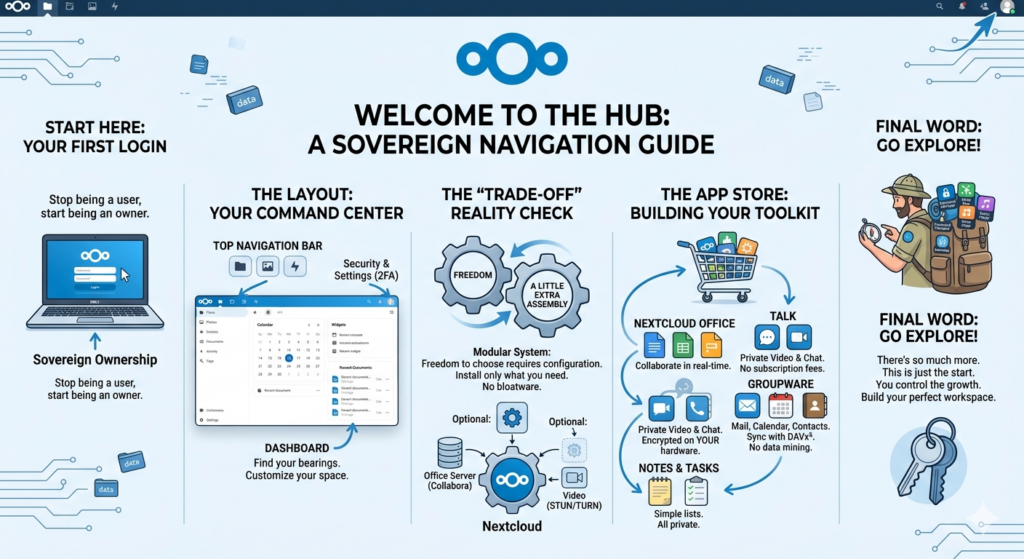
Congratulations. You’ve moved past the “corporate cloud” and onto your own hardware. Whether you’re running on a reclaimed Dell or a dedicated server, your first login to Nextcloud is the moment you stop being a “user” and start being an owner.
The Layout: Where Am I?
When you first log in, the interface is clean and intentionally familiar.
- The Top Navigation Bar: This is your command center. Every “App” you enable will appear as an icon here. By default, you’ll see Files, Photos, and Activity.
- The Dashboard: Your “home” screen. You can customize this with “Widgets” that show your upcoming calendar events, recent files, or even the local weather—all without a single tracking cookie.
- The Search/Profile Corner: In the top right, you’ll find your user settings. This is where you manage security, including the essential Two-Factor Authentication (2FA).
The “Trade-Off” Reality Check
Before we dive into the apps, there is a fundamental truth to independent computing: Freedom requires a little extra assembly. Nextcloud is a modular system. Unlike corporate suites where every feature is forced upon you (along with the data mining), Nextcloud starts lean. To get the full “Hub” experience—like document editing or video chat—you may need to install backend components like Office Online servers (Collabora or OnlyOffice) or STUN/TURN servers for Talk. It is a trade-off: you spend a little more time on the setup “blueprint,” but in return, you get a system that doesn’t answer to anyone but you.
The App Store: Building Your Toolkit
Click your profile icon and select Apps. This is the heart of the versatility you’ve heard about. It is divided into categories like “Office & Text,” “Customization,” and “Security.”
- Nextcloud Office: If you want to kill the subscription for Word or Excel, look here. It allows for collaborative editing directly in your browser.
- Nextcloud Talk: This replaces your video conferencing and chat apps. It’s end-to-end encrypted and lives entirely on your hardware.
- Groupware (Mail, Calendar, Contacts): This is the “Productivity Trifecta.” Once enabled, you can sync your phone to your server using DAVx⁵, ensuring your schedule and contacts are never scanned by an ad bot again.
- Notes & Tasks: Simple, markdown-based tools that keep your “to-do” lists private.
Final Word: Go Explore
We are only scratching the surface. There are apps for Password Management, Mind Mapping, GPX Tracking for hikers, and even Music Streaming.
Your goal right now isn’t to install everything at once. It’s to explore the settings, look through the App Store, and realize that you finally have a digital workspace that grows with you. If you get stuck, remember: you’re part of a massive global community of independent thinkers.
Welcome to the Sovereign Stack. The keys are officially yours.